Sensors
This page covers the released sensor blocks: Radar Altimeter, Terrain Scanner, and Advanced Terrain Scanner. It explains placement, in-game controls, and redstone output. For Lua readings, use the Computer Craft guide.
Radar Altimeter
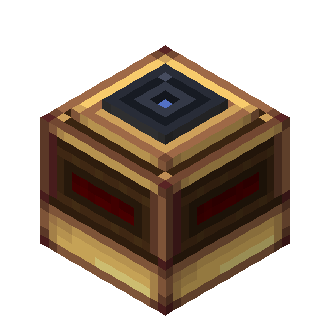
Place the Radar Altimeter with its glass lens facing down. It measures clearance below the lens, up to the configured maximum range (128 blocks by default). It emits the altitude channel on every block face. The redstone signal rises with altitude: the configured lower distance produces 0, the upper distance produces 15, and values between them are scaled across the range. The default range is 0–32 blocks.
Terrain Scanner
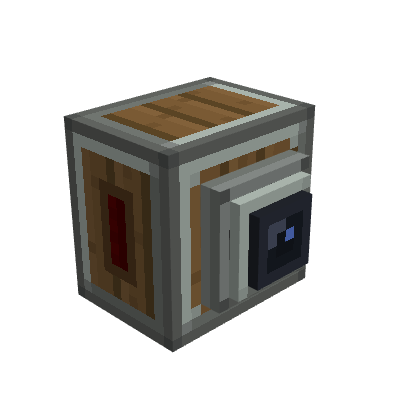
Place the scanner facing the area you want to watch. Its nozzle marks the forward direction. It follows its horizontal facing and can be mounted upside down while keeping that same direction. The Basic scanner uses nine rays across a fixed 90° aperture and emits its front channel from all block faces.
Open the scanner and set Looks at to the side of the craft it watches: aircraft front, aircraft rear, left side or right side. A new scanner starts as Not set. Only the Avionics Computer uses this setting; the redstone output does not depend on it.
The scanner reports the closest detected obstacle. Its signal is strongest near an obstacle: the configured lower distance produces 15, the upper distance produces 0, and values between them are scaled across the range. The default range is 4–32 blocks.
Advanced Terrain Scanner
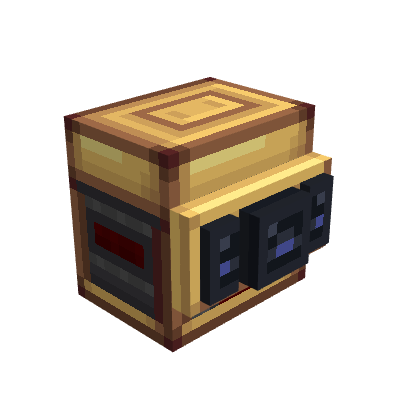
The Advanced scanner has independent front, left, and right channels. Its Aperture can be set from 30° to 180° in 5° steps and starts at 90°. The screen shows a Front, Left and Right section, each with its own distance range and optional Create Redstone Link frequencies. Side channels activate only above a 50° aperture; below that their section shows "Needs aperture above 50°". Like the Basic scanner, it has a Looks at setting.
Each channel uses the same proximity scale as the Basic scanner: 15 at or nearer than the lower bound, 0 at or beyond the upper bound, and a scaled value between them. Defaults are 4–32 blocks per channel. The Advanced scanner routes each channel to the matching forward, left, or right horizontal face when using block-face output.
Configure redstone outputs
Right-click any sensor to open its output screen. Every change applies at once: there is no Apply or Cancel button. The header shows the sensor and where its signal goes: Block faces or Via Link.
Each channel has two distance controls, in blocks (1 block = 1 m):
- Radar Altimeter: Low · signal 0 and High · signal 15. The signal grows as the craft climbs. Default 0–32.
- Terrain Scanners: Near · signal 15 and Far · signal 0. The signal grows as an obstacle gets closer. Default 4–32.
Click the arrows or use the mouse wheel; hold Shift to step by 10. The two ends never cross and never pass the sensor's maximum range (128 blocks by default). A channel with no valid reading or no detected obstacle emits 0.
The two frequency slots (red and blue) of a channel choose where its signal goes:
- Leave both empty to emit redstone from the block faces.
- Click a slot to open Link frequency: click an inventory item to copy it into the slot, or drag it onto a slot. Items are copied, never used up. Done or Esc goes back. Right-click a slot to clear it.
- With both slots filled, the channel broadcasts through Create's Redstone Link. The status next to the slots reads Block faces, Incomplete pair, Via Link or Off (Link mode).
- On the Advanced Terrain Scanner, routing is global. A complete pair on any channel switches the whole sensor to Redstone Link, and channels without a complete pair are off. Give every channel you want to use a pair.
Settings are stored with the sensor.
Reading limits
Sensors do not load chunks. Unloaded terrain is not scanned; a terrain scanner can therefore have incomplete coverage near unloaded chunks. A missing reading is not the same as a zero-distance measurement. Place sensors so their measurement direction and intended terrain are available in loaded chunks.