Modular Table
Experimental
The Modular Table and its modules are Experimental content. They can be crafted, but their behavior may change.
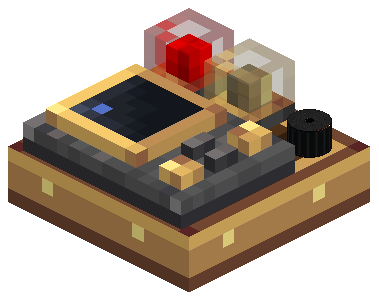
The Modular Table is the cockpit panel. It is a thin brass-and-wood slab with a 3 × 3 grid of cells. You install modules in the cells: warning lamps, a buzzer and the Flight Management System (FMS). Lamps and buzzers show the alerts of the Avionics Computer.
Place tables
- Mount the Modular Table Base on any solid face: floor, wall or ceiling.
- Tables side by side, on the same plane and mounted on the same face, join into one panel. The brass frame runs around the whole group. A module can cross from one table into the next, for example a long lamp over two tables or an FMS over four. Tables touching only at a corner do not join. A panel holds up to 256 tables.
- Connect the panel to the avionics network with a Wire Connector on any of its tables. One connection feeds every table of the panel. On a table's edge, a Wire Connector drops its outer flange and fits the edge.
Dock a table on the computer
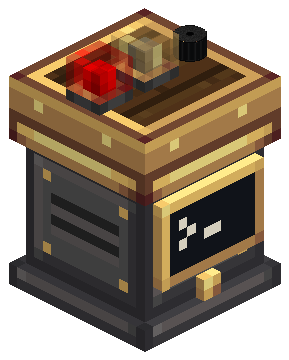
Mount a table directly on any face of an Avionics Computer, on top or on a side. The table is then docked: it is on the computer's network without any wire, and the lamps show its alerts right away.
Modules
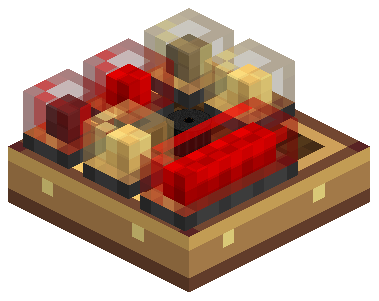
| Module | Size | What it does |
|---|---|---|
| Lamp Module (1×1) | 1 cell | A warning light, red or amber |
| Lamp Module (2×1) | 2 cells | A long warning light. Scroll while aiming at the table to turn it upright (1×2) |
| Buzzer Module (1×1) | 1 cell | Beeps on alerts, from the module's position in the world |
| FMS (2×3) | 2 × 3 cells | Flight Management System: waypoints and a heading compass |
Install and remove
- Hold a module in your main hand and aim at the table. The grid shows the module's footprint: green if it fits, red if it collides or crosses an edge.
- Right-click to install. One item is used in survival; creative keeps it.
- Right-click an installed module with a Create Wrench to remove it. The item returns to your inventory, or drops if it is full.
Breaking the table drops its modules. Sneak and right-click the table with a Wrench to pick it up with Create's own action.
Lamps and buzzers
Each lamp or buzzer chooses what it indicates, from a short list like a real cockpit's annunciators. The lens colour comes from the indication and stays visible when the lamp is off.
| Indication | Lights when | Colour |
|---|---|---|
| GPWS warning | Any Avionics Computer function is in Warning | Red |
| GPWS caution (default) | Any function is in Caution or Warning | Amber |
| GPWS INOP | The computer is INOP, or no computer answers on a complete network | Amber |
| Single function | One function: Terrain ahead, Pull up, Sink rate, Don't sink, Too low or Bank angle | Amber, red in Warning |
The buzzer sounds on GPWS caution (default, every alert) or GPWS warning (red alerts only), at a volume you choose. It beeps fast in a Warning and slowly in a Caution. At 100% it can be heard up to 16 blocks away; lower volumes reach less.
| With an empty main hand | Result |
|---|---|
| Right-click a lamp that is off, or a silent buzzer | Opens that module's settings. Changes apply at once |
| Right-click a lit lamp or a sounding buzzer | Acknowledges the alert and silences the panel's buzzers, like a Master Warning. A new or worse alert sounds again |
| Sneak + right-click a lit lamp or a sounding buzzer | Opens its settings |
| Right-click an empty cell | Opens the panel: computer state, modules, lit lamps, Test panel and Silence |
With a Create Wrench, scroll over a lamp to switch between GPWS warning and GPWS caution, or over a buzzer to change the volume in steps of 10%. A label next to the crosshair shows the current and next setting.
The table also gives off a little block light from its brightest lit lamp (lampLightLevel server option, default 5, 0 turns it off).
Flight Management System
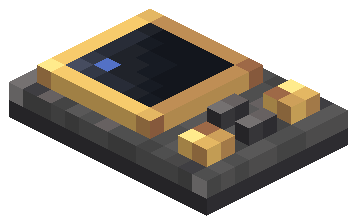
Right-click any cell of the FMS to open it. Everything is on one panel and every click applies at once.
- Destination: the top of the panel shows Direct to the active waypoint, with its distance, bearing and position. A waypoint in another dimension shows "Another dimension" instead of a distance. With no destination the panel says so, and the FMS screen on the table stays dark.
- Waypoints: the list shows each waypoint with its distance. Click one to fly direct to it; click the active one again to clear the destination. Right-click a waypoint to edit it. The list scrolls after seven waypoints.
- New waypoint: opens the editor already filled with your position and the name ready to type. Use my position fills in where you stand again. Coordinates are whole blocks; decimals round down. New waypoints use your current dimension. To delete a waypoint, open it and click Delete, then Confirm delete.
- Clear destination removes the active waypoint.
With a destination set, the FMS screen on the table shows a compass that turns with the craft's heading and marks the waypoint.
FMS Compass
The FMS Compass section shows the first FMS Compass in your inventory: not in inventory, not linked, linked here, or linked to another FMS. Click Link compass to link it to this exact module; the item is not used up. If it already points to another FMS, the button reads Relink to this FMS and the click confirms the change.
Put the linked compass in an Aeronautics Navigation Table and it steers toward the active waypoint. On the same ship as the FMS the range is unlimited; otherwise the table and the FMS must be within 256 blocks. The FMS must be loaded and the waypoint in the same dimension.
Waypoints, the selected destination and the module's identity travel with the FMS item when you remove it.